Here's how to take your first step in becoming a 'Super User'
Mar 9, 2019 00:00 · 1324 words · 7 minute read
Let me start by showing off what’s on my laptop and phone home screens:
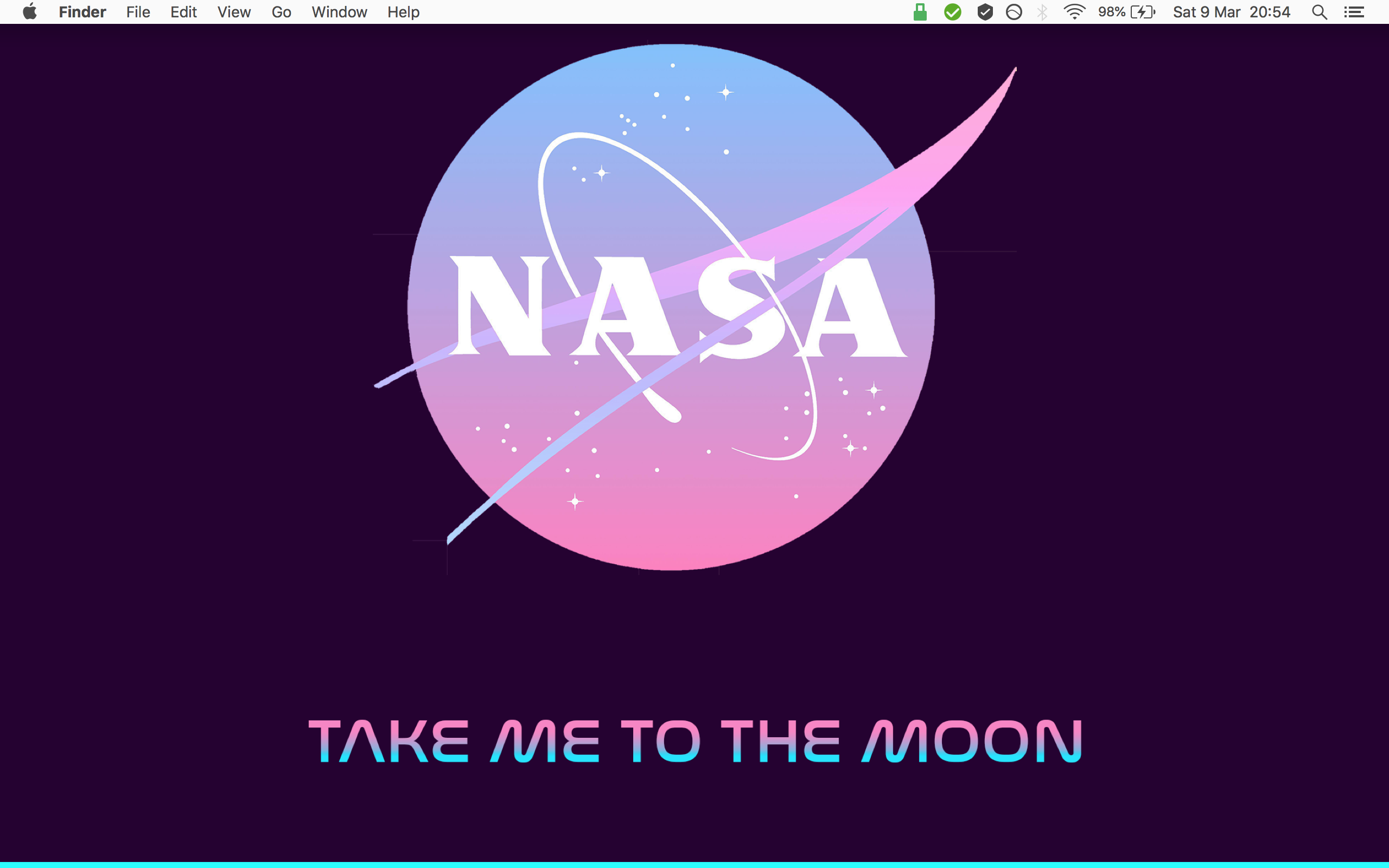

I really do think that information overload is becoming an increasingly ubiqutous and burdensome problem in the developed world, and you’ll see that the lack of information/clutter/applications on both screens of my two devices illustrate necessity rather than convenience. I do know you’re itching to get to the Super User-y lifehacks, so the last thing I’ll say about this is how my aim has been to eliminate digital distractions and increase focus in my digital life.
So, onto Super User lifehacks. One reason I can afford to have nothing on my laptop desktop most of the time is because of how I now move around a computer (irrespective of whether it’s a Windows, Apple or Linux operating system). To sum this up in pictures, I have basically made these two things my mortal enemies:
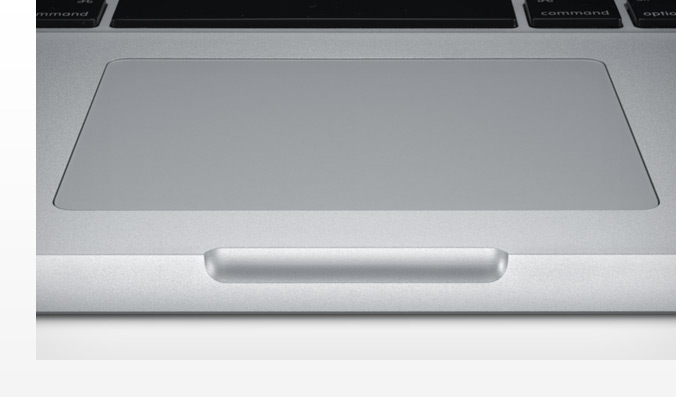
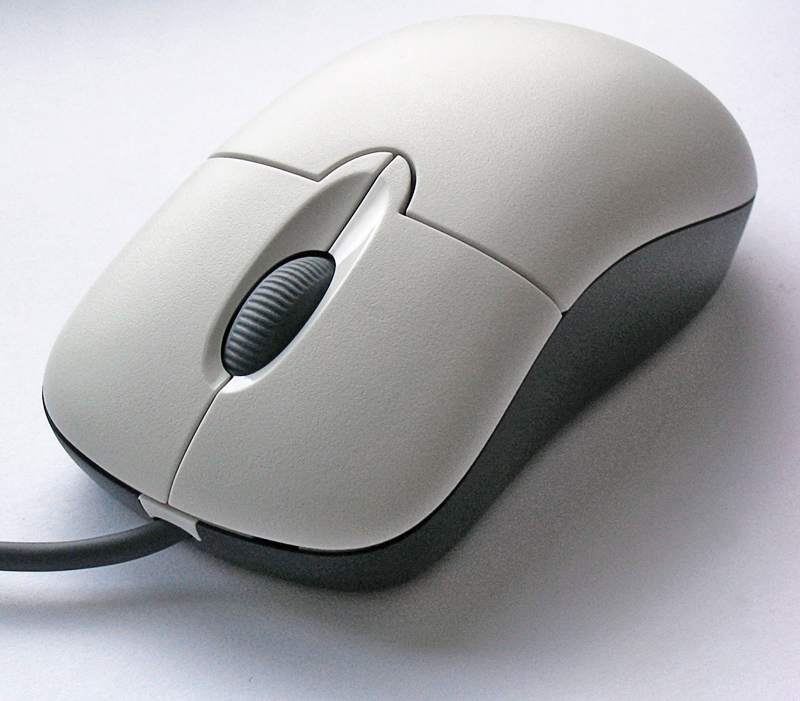
My goal has been to increase my repertoire of keyboard shortcuts (think copy-pasting with cmd-c/ctrl-c), and no doubt these small tricks continue to save me countless hours a month given the amount of time I spend on my laptop and how far I’ve come in moving around a computer. Let’s start out slowly - I’ll be giving you the Mac shortcuts with Windows equivalents in brackets as far as possible:
cmd-tab(oralt-tabon Windows) will literally change your life. Seriously. Try it out now.
Gone will the days be where you spend what feels like 4 hours moving through those little icons at the bottom of your screen, trying to find the last Excel sheet you were working on. Holding the cmd (or alt on Windows) key and tapping the tab key gives you the lightning fast capability of cycling through the open applications on your computer. Cycling through everything you have open on a Mac is a bit more nuanced (to go through multiple windows in say Finder requires you to press cmd-`), but if there is one thing you would want to nail, it is this.
Combining the above trick with this:
cmd-space(windowskey on Windows)
and you instantly become a super user demi-god. cmd-space on Mac opens Spotlight Search which can literally be used to do anything on a Mac, from opening applications to searching your entire computer for any file (believe me, I’ve tried it). On a Windows system, hitting the windows key opens up the start menu where you are also able to search for files or open programs. The windows key is the one in the middle in case you had no idea:
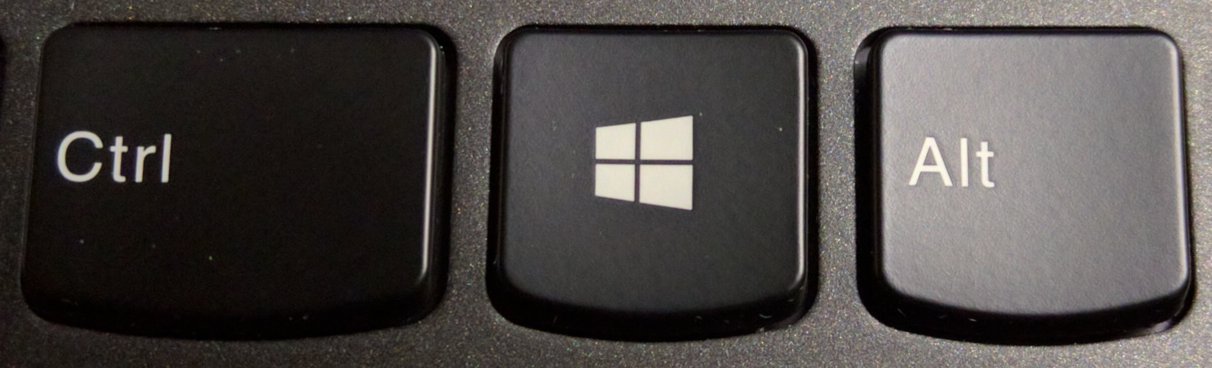
Just think about what you can now already do with these two nuggets - you don’t have to spend decades wandering through Documents folders to find that picture your gran has been hassling you for months, and you don’t have to spend centuries double clicking icons left, right and centre haphazardly around your computer. You can now boast beautiful, empty desktop screens like mine above, drunk on the power that you can navigate around your computer without even touching that silly mouse or trackpad.
You can also give yourself a bit of extra space on your screen (extra nice for 13" screens) by hiding icon bars and cheekily having only 6-7 icons in Mac docks:
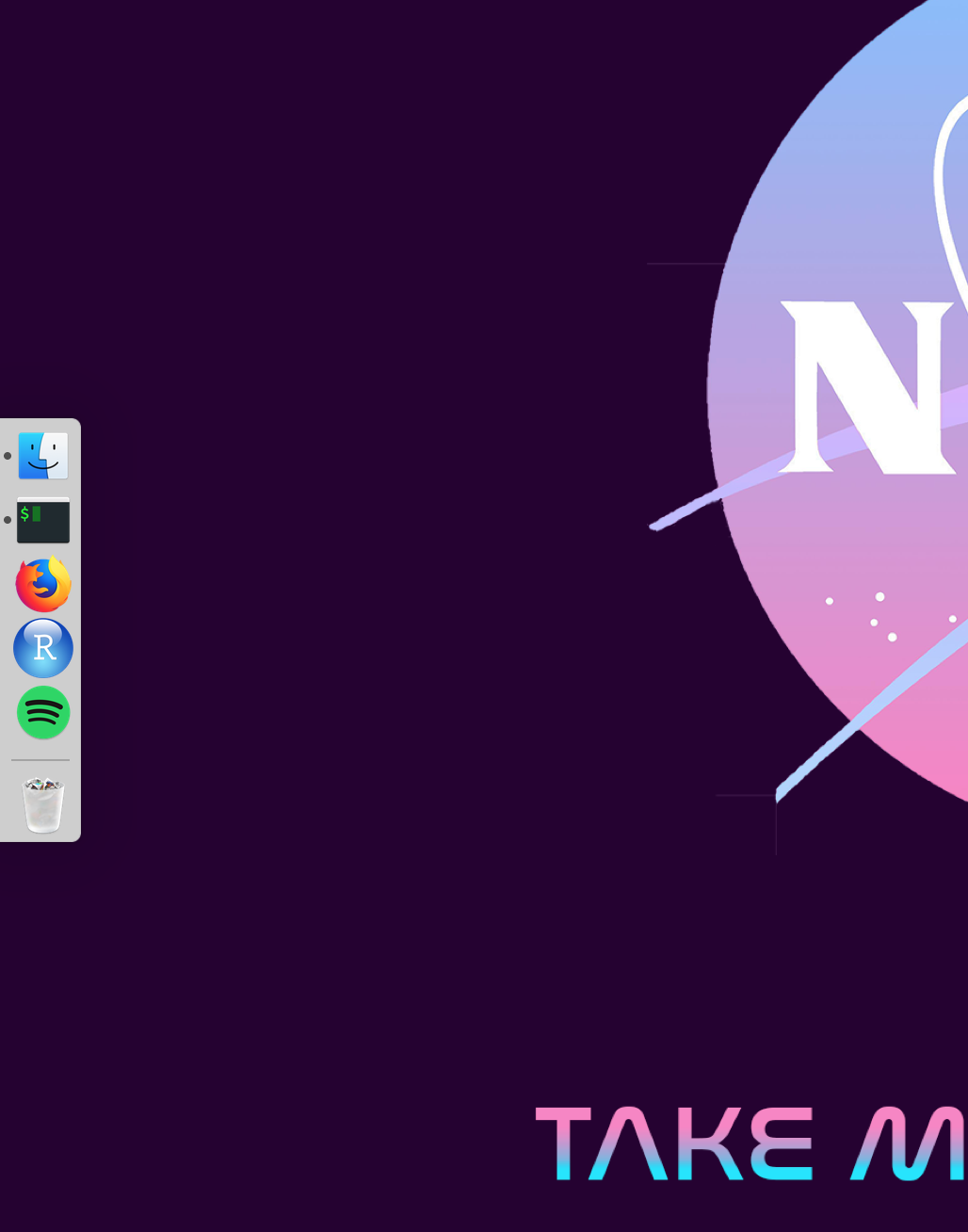
So having now implemented these two small tricks, you have saved yourself plenty of time whenever you climb onto a computer. The next step is to look at the applications/programs you use the most everyday, and begin investing some time in avoiding trackpads/mice to increase those savings even more. Here are the shortcuts that correspond to what I use most and trust me, they are all worth it.
Internet Browser (and basically any other application on your computer worth it’s salt)
cmd-t(ctrl-t) opens a new tabcmd-w(ctrl-w) closes a tab/windowcmd-shift-t(ctrl-t) reopens the last tab you closed (you’ll see the friendlyshiftbutton coming up whenever you want to reverse something)cmd-1(ctrl-1) swaps to your first open tabcmd-9(ctrl-9) swaps to your last open tabcmd-shift-]andcmd-shift-[(ctrl-tabandctrl-shift-tab) swaps to right and left tabs respectively. This shortcut is an interesting one because it tends to be different across operating systems and across internet browsers (and there are also a couple of different shortcuts that do this). What I’ve listed here are my preferred shortcuts in Mac/Windowscmd-l(ctrl-l) takes you to the browser search bar, which becomes extremely handy any time you want to move off the current page and have some idea of the url you want to go tocmd-r(ctrl-r) reloads the page nice and quicklycmd-shift-n(ctrl-shift-n) orcmd-shift-pin Firefox if you want to open an incognito tab, which you may think of doing more regularly after taking back some control of your digital privacy.
Mac Finder or Windows File Explorer
Here the differences between Mac and Windows get pretty niggly, but again if you spend the time to get comfortable with the shortcuts for your operating system you will thank your past-self immensely.
cmd-arrow keyswill allow you to move around the Mac Finder, withcmd-down arroweven allowing you to open files etc. On Windows you will need to use a combination of theenter/returnkey andalt-arrow keys- the usual suspects for copy-pasting files:
cmd-c(ctrl-c) for copying andcmd-v(ctrl-v) for pasting. Two things to note here: A) this works almost universally, so copy-pasting text in any shape or form will now be a breeze, and B) if you want to cut and paste then for Mac users you’ll have to usecmd-cand thencmd-alt-vto move the file in Finder instead of duplicating it. - last but not least I give you the ability to time travel and correct all the mistakes you’ve made in your life (just joking only that one mistake you just made typing an email to your gran):
cmd-z(ctrl-z). Again, this works pretty much universally, allowing you to undo files/text you’ve just incorrectly moved/deleted, and if you make a mistake undoing your mistake (mistake-ception), you can redo what you just undo-ed withcmd-shift-z(ctrl-shift-z).
Miscellaneous
cmd-f(ctrl-f) to change the way you find text and keywords on webpages/pdfs etc.alt-left/right arrowkeys(ctrl-left/right arrowkeys) to change the way you navigate while typing text anywhere on your computer. PS: Did you know you can create adeletekey on Mac? Just usefn-backspace. You can also skip to the beginning and end of lines of text usingcmd-left arrowandcmd-right arrow(essentially the same ashomeandendkeys on Windows).cmd-s(ctrl-s) to save any document you are working on (adding ashiftin the middle is sometimes the shortcut for ‘save as’)cmd-q(alt-F4) closes the current program you’re working on. Note that the Mac shortcut is stronger here i.e. it will close multiple windows of an application whereasalt-F4on Windows just closes the current application window you have open.
I haven’t even begun to look at more specific shortcuts like Gmail shortcuts that can save you hours or creating a shortcut on Macs to eliminate right clicking, but I hope this has given you a taste of the awesomeness you could embody while whizzing around your laptop, impressing your work colleagues with 150% increases in productivity and time-saving skills.
Again, I want to stress that keyboard shortcuts tend to carry across applications (and operating systems), so each one you learn can have multiple benefits. There are so many more out there that I haven’t mentioned, so start Googling (or better DuckDuckGo-ing) as many shortcuts that will fit in your brain and you will be well on your way to becoming a Super User ninja.